Display
Display panel contains everything related to how points are displayed in viewport. Main shader for points is chosen with Shader dropdown menu.
Preset  menu in panel header will save all settings in all subpanels into a preset.

Points
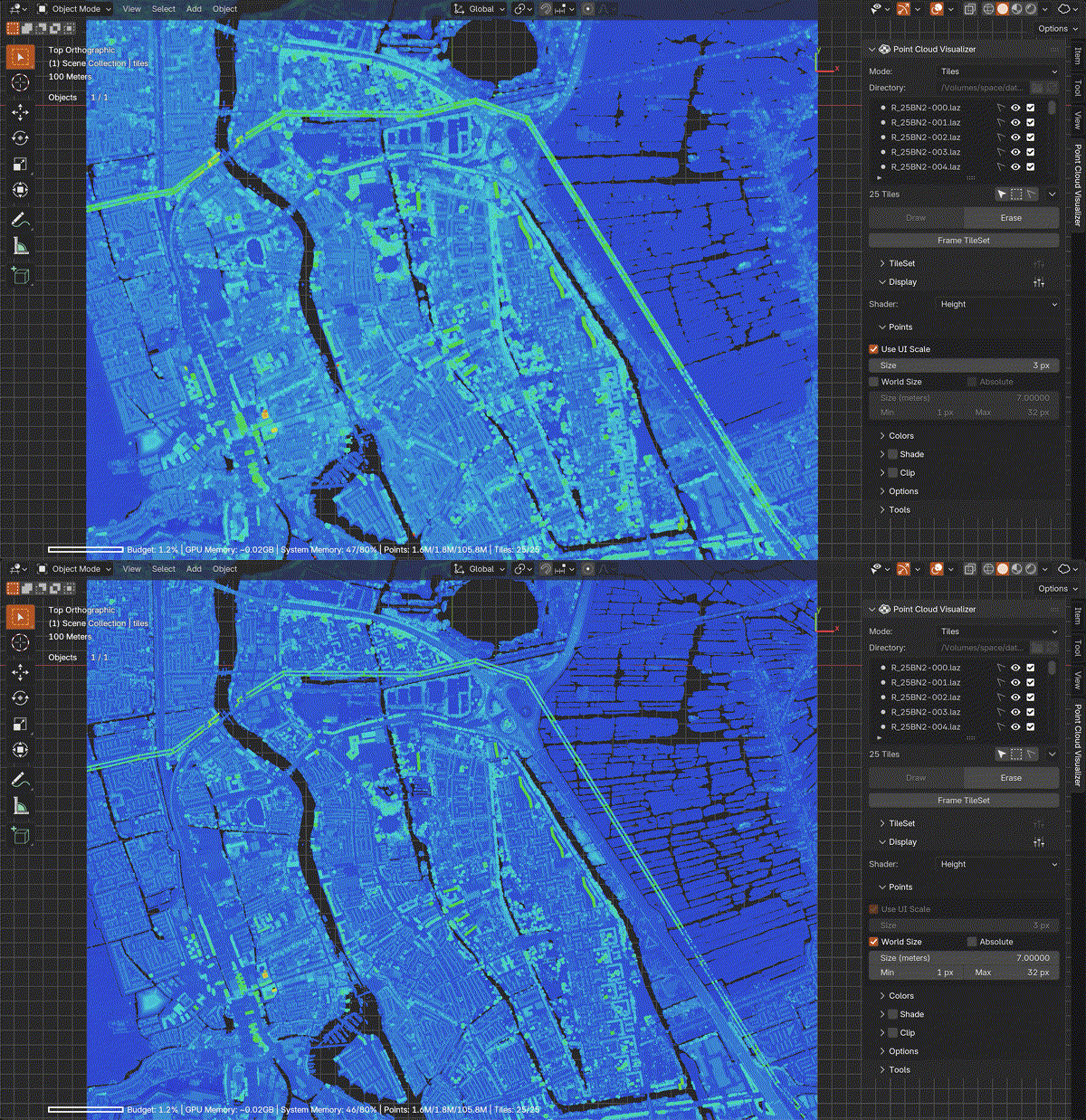
Points panel contains settings related to point size.

Colors
Colors panel contains settings related to point color or color generation, its content changes according to selected shader.
Colors Shader
Colors are used as they are stored in files, only converted to Blender color space (sRGB → linear). Colors can be adjusted in shader directly by enabling Use Color Adjust.
Default Color can only be changed before dataset is loaded and will be used when colors are not available in files.


Height Shader
Colors for Height shader contains axis selection, remapping options and options for custom colors. Range can be set automatically according to selected axis clicking  button, values are computed from all tiles bounding boxes.

Scalar Shader
Contains a list of available scalar fields, value remapping options and colorization schemes.
Range can be set automatically clicking button to set from loaded tiles or from loaded and selected tiles by  button. If
  button is pressed, range is also set when scalar field is selected in list.


Shade (EDL)

Variant of Eye-dome Lighting, can be enabled for all shaders and is especially helpful if dataset has no colors. Works best when there are no gaps between points which depends on displayed density, point size and viewport camera view.
Will work in multiple viewports, but better to have just one for best performance (Quad View viewport counts as 4 viewports).

Warning
Shade will not work on Windows and Linux with Vulkan GPU Backend in Blender 4.5 - 5.0. Change to OpenGL GPU Backend in Blender Preferences in order to make it work. It has been fixed since Blender 5.1.
Clip
Clip displayed points by up to 6 planes. You can control each plane individually by gizmo that is enabled by clicking  button.
Reset To TileSet Bounding Box will reset all planes to data bounding box,  in local coordinates or
  in world coordinates.
Clip planes state can be saved per object clicking  button and removed by
  . Stored state will be restored by
  button on list item.
All planes at once, aligned to a cuboid, can be controlled with Clip Box gizmo,  shows translate handles,
  rotate handles,
  move box vertices,
  move box sides and
  to move opposite faces together or in inverse direction.
 Clip Box uses all 6 planes to determine its location, rotation and dimensions by intersecting planes together, if that for any reason cannot be done (e.g. 3 planes at corner does not intersect in a single point), it resets itself to data bounding box. If any plane is rotated with Clip Plane gizmo out of right angle, it will reset to data axis aligned bounding box in world coordinates. For most predictable results reset state before enabling and don’t mix both gizmos together.
You can also use any Blender Object bounding box to set planes from. If  is enabled, bounding box source object can be animated and clip planes will be updated on each redraw.
Set Clip Planes From Object Bounding Box will set planes from object bounding box and Set Clip Planes From Clipping Region Blender viewport Clipping Region if already set. Frame Unclipped Tiles will move and zoom viewport on unclipped points.

Clip Plane Gizmo

Clip Box Gizmo

Options
Various drawing options:
Draw Empty Tiles- not yet loaded tiles bounding boxesDraw Disabled Tiles- bounding boxes of disabled tilesDraw Selection- selection, highlight tiles selected with or  tools and highlight active tile that is selected in tile list
Draw Tile Labels- tile filename at tile center
